|
|
| Ligne 7 : |
Ligne 7 : |
| | |Duration=10 | | |Duration=10 |
| | |Duration-type=minute(s) | | |Duration-type=minute(s) |
| − | |Tags=TB0428, silex, USB, Yaskawa | + | |Tags=Confluence |
| | }} | | }} |
| | {{Introduction | | {{Introduction |
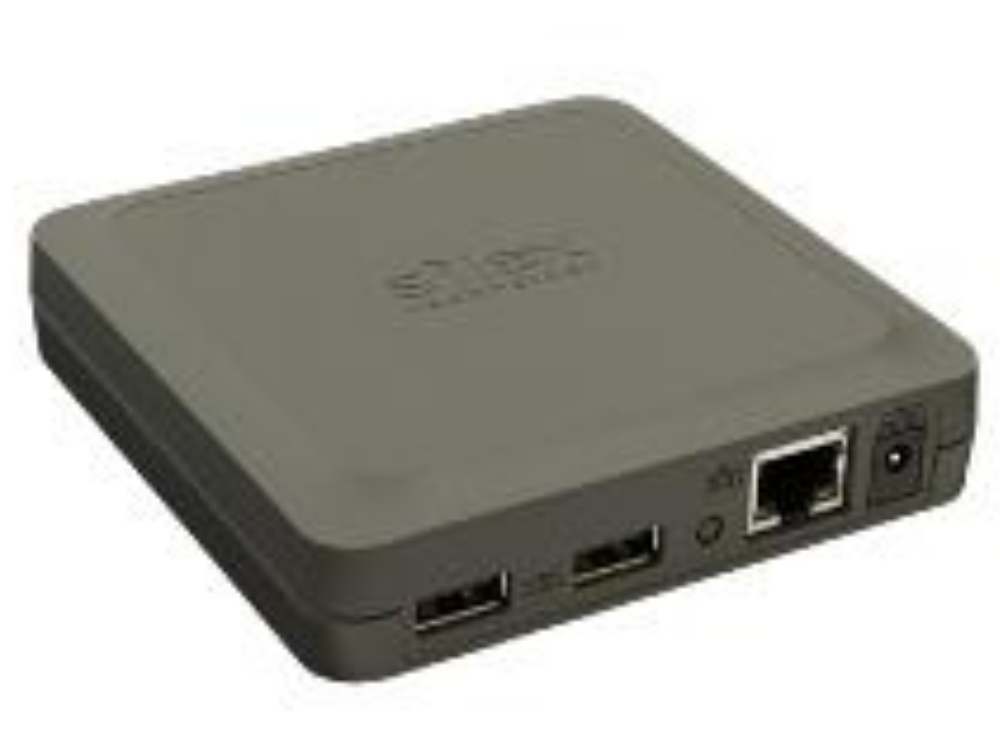
| − | |Introduction=<translate>== What is the Silex DS-510? == | + | |Introduction=<translate>04/12/2025 Moved to confluence |
| − | The Silex unit is a USB server, allowing a PC to have a USB port anywhere over an ethernet network. This is useful to connect the PC to a Yaskawa inverter when they are located in different cabinets.
| |
| | | | |
| − | The software sets up a virtual USB port which can then be used to run the Yaskawa DriveWorks software.</translate>
| + | [https://stuga-ltd.atlassian.net/wiki/external/Mzk5NGY2Y2NiY2VjNGJkODkyMjVkZDIzMGIzYzFmNzY Click here]</translate> |
| | }} | | }} |
| | {{Materials}} | | {{Materials}} |
| | {{EPI}} | | {{EPI}} |
| | {{Tuto Step | | {{Tuto Step |
| − | |Step_Title=<translate>Connect to mains</translate> | + | |Step_Title=<translate></translate> |
| − | |Step_Content=<translate>Connect the Silex to mains, onto the network via RJ45 and via USB to the Yaskawa</translate> | + | |Step_Content=<translate></translate> |
| − | |Step_Picture_00=TB0428_Connecting_To_Yaskawa_with_Silex_USB_silex2.jpg
| |
| − | }}
| |
| − | {{Tuto Step
| |
| − | |Step_Title=<translate>Install SX Virtual Link</translate>
| |
| − | |Step_Content=<translate>Install SX Virtual Link software on your PC, download [https://www.silextechnology.com/hubfs/Resource%20firmware/s-33a441.zip here]. Keep all defaults during install</translate>
| |
| − | }}
| |
| − | {{Tuto Step
| |
| − | |Step_Title=<translate>Run software</translate>
| |
| − | |Step_Content=<translate>Power on and run the software</translate>
| |
| − | }}
| |
| − | {{Tuto Step
| |
| − | |Step_Title=<translate>Connect</translate>
| |
| − | |Step_Content=<translate>Double click the Yaskawa or click on the button at the bottom to connect</translate>
| |
| − | |Step_Picture_00=TB0428_Connecting_To_Yaskawa_with_Silex_USB_silex3.jpg
| |
| − | |Step_Picture_00_annotation={"version":"2.4.6","objects":[{"type":"image","version":"2.4.6","originX":"left","originY":"top","left":105,"top":1,"width":855,"height":776,"fill":"rgb(0,0,0)","stroke":null,"strokeWidth":0,"strokeDashArray":null,"strokeLineCap":"butt","strokeDashOffset":0,"strokeLineJoin":"miter","strokeMiterLimit":4,"scaleX":0.87,"scaleY":0.87,"angle":0,"flipX":false,"flipY":false,"opacity":1,"shadow":null,"visible":true,"clipTo":null,"backgroundColor":"","fillRule":"nonzero","paintFirst":"fill","globalCompositeOperation":"source-over","transformMatrix":null,"skewX":0,"skewY":0,"crossOrigin":"","cropX":0,"cropY":0,"src":"https://stuga.dokit.app/images/d/df/TB0428_Connecting_To_Yaskawa_with_Silex_USB_silex3.jpg","filters":[]}],"height":448.8778054862843,"width":600}
| |
| − | |Step_Picture_01=TB0428_Connecting_To_Yaskawa_with_Silex_USB_silex4.jpg
| |
| − | |Step_Picture_01_annotation={"version":"2.4.6","objects":[{"type":"image","version":"2.4.6","originX":"left","originY":"top","left":91,"top":0,"width":1140,"height":1034,"fill":"rgb(0,0,0)","stroke":null,"strokeWidth":0,"strokeDashArray":null,"strokeLineCap":"butt","strokeDashOffset":0,"strokeLineJoin":"miter","strokeMiterLimit":4,"scaleX":0.88,"scaleY":0.88,"angle":0,"flipX":false,"flipY":false,"opacity":1,"shadow":null,"visible":true,"clipTo":null,"backgroundColor":"","fillRule":"nonzero","paintFirst":"fill","globalCompositeOperation":"source-over","transformMatrix":null,"skewX":0,"skewY":0,"crossOrigin":"","cropX":0,"cropY":0,"src":"https://stuga.dokit.app/images/e/e5/TB0428_Connecting_To_Yaskawa_with_Silex_USB_silex4.jpg","filters":[]}],"height":450,"width":600}
| |
| − | }}
| |
| − | {{Tuto Step
| |
| − | |Step_Title=<translate>Run Yaskawa DriveWizard</translate>
| |
| − | |Step_Content=<translate>Run Yaskawa DriveWizard (installation file is in Dropbox (Stuga Machinery Ltd)\service\3rd Party Manuals\Inverters\Yaskawa)</translate>
| |
| − | |Step_Picture_00=TB0428_Connecting_To_Yaskawa_with_Silex_USB_silex5.jpg
| |
| − | |Step_Picture_00_annotation={"version":"2.4.6","objects":[{"type":"image","version":"2.4.6","originX":"left","originY":"top","left":-2,"top":-2,"width":1536,"height":1079,"fill":"rgb(0,0,0)","stroke":null,"strokeWidth":0,"strokeDashArray":null,"strokeLineCap":"butt","strokeDashOffset":0,"strokeLineJoin":"miter","strokeMiterLimit":4,"scaleX":0.59,"scaleY":0.59,"angle":0,"flipX":false,"flipY":false,"opacity":1,"shadow":null,"visible":true,"clipTo":null,"backgroundColor":"","fillRule":"nonzero","paintFirst":"fill","globalCompositeOperation":"source-over","transformMatrix":null,"skewX":0,"skewY":0,"crossOrigin":"","cropX":0,"cropY":0,"src":"https://stuga.dokit.app/images/e/e6/TB0428_Connecting_To_Yaskawa_with_Silex_USB_silex5.jpg","filters":[]}],"height":450,"width":600}
| |
| − | }}
| |
| − | {{Tuto Step
| |
| − | |Step_Title=<translate>Find COM Port</translate>
| |
| − | |Step_Content=<translate>Find the COM Port that has been assigned to the Yaskawa by looking in Windows Device Manager (type in your search box, or through control panel)</translate>
| |
| − | |Step_Picture_00=TB0428_Connecting_To_Yaskawa_with_Silex_USB_silex6.jpg
| |
| − | |Step_Picture_00_annotation={"version":"2.4.6","objects":[{"type":"image","version":"2.4.6","originX":"left","originY":"top","left":0,"top":0,"width":647,"height":864,"fill":"rgb(0,0,0)","stroke":null,"strokeWidth":0,"strokeDashArray":null,"strokeLineCap":"butt","strokeDashOffset":0,"strokeLineJoin":"miter","strokeMiterLimit":4,"scaleX":0.93,"scaleY":0.93,"angle":0,"flipX":false,"flipY":false,"opacity":1,"shadow":null,"visible":true,"clipTo":null,"backgroundColor":"","fillRule":"nonzero","paintFirst":"fill","globalCompositeOperation":"source-over","transformMatrix":null,"skewX":0,"skewY":0,"crossOrigin":"","cropX":0,"cropY":0,"src":"https://stuga.dokit.app/images/e/e9/TB0428_Connecting_To_Yaskawa_with_Silex_USB_silex6.jpg","filters":[]}],"height":801,"width":600}
| |
| − | }}
| |
| − | {{Tuto Step
| |
| − | |Step_Title=<translate>Enter into the communications setup</translate>
| |
| − | |Step_Content=<translate>Enter this into the communications setup on DriveWizard</translate>
| |
| − | |Step_Picture_00=TB0428_Connecting_To_Yaskawa_with_Silex_USB_silex7.jpg
| |
| − | }}
| |
| − | {{Tuto Step
| |
| − | |Step_Title=<translate>Click on Modify link</translate>
| |
| − | |Step_Content=<translate>Click on Modify link</translate>
| |
| − | |Step_Picture_00=TB0428_Connecting_To_Yaskawa_with_Silex_USB_silex8.jpg
| |
| − | }}
| |
| − | {{Tuto Step
| |
| − | |Step_Title=<translate>Enter COM port</translate>
| |
| − | |Step_Content=<translate>Enter the COM port in the drop down box</translate>
| |
| − | |Step_Picture_00=TB0428_Connecting_To_Yaskawa_with_Silex_USB_silex9.jpg
| |
| − | }}
| |
| − | {{Tuto Step
| |
| − | |Step_Title=<translate>Connect to drive</translate>
| |
| − | |Step_Content=<translate>Click connect to drive</translate>
| |
| − | |Step_Picture_00=TB0428_Connecting_To_Yaskawa_with_Silex_USB_silex10.jpg
| |
| | }} | | }} |
| | {{Notes}} | | {{Notes}} |

 Français
 English
 Deutsch
 Español
 Italiano
 Português